Skip to content

Brickfield Enable

The Accessibility Toolkit for Moodle Enterprise edition

Every feature, in detail

Brickfield Enable is the only accessibility solution designed from the ground up for Moodle, and the only one certified by Moodle HQ. See how each capability helps you find issues, fix content, and futureproof your courses for every learner.

Part 1 of 5

For your learners

Tools your students and staff can use straight away, with no extra authoring work required.

Browser and Authoring Guides

Tools fix today's content; skills futureproof tomorrow's.

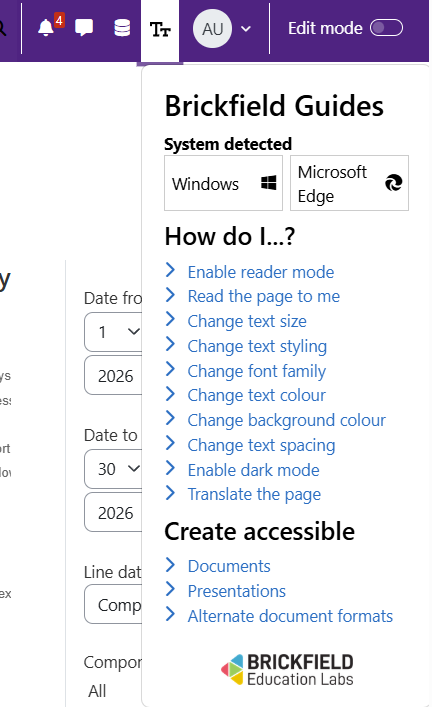
Brickfield Enable includes built-in guidance for both staff and students, available right inside Moodle, so good practice is always close at hand.

Students get step-by-step browser tips for tailoring their own reading experience, and practical guides on creating accessible documents, presentations and alternative formats, as seen here.

Staff get, in addition to the student guides, their own just-in-time tips within Enable for better content creation, based on our types: images, layout, links, and so on. They also get tips, examples, and potential impacts on each of the checks being run.

The various guides cover:

  • Browser tips for reader mode, read-aloud, text size, spacing, fonts, colours and dark mode, and so on.
  • Step-by-step support tailored to each platform and browser.
  • Guidance on creating accessible documents and presentations.
  • How to create and use alternative document formats.
  • Just-in-time accessibility tips for creating content types.
  • Just-in-time accessibility tips for understanding checks and their purpose.
The Brickfield guides panel with browser tips and how-to guides for creating accessible documents and presentations

Alternate Formats

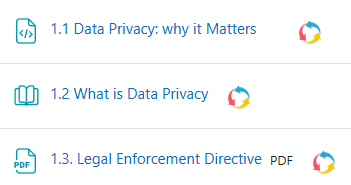
Give every learner the format that works for them. Within any course, students and staff can convert existing resources — files, folders, books and pages — into a range of accessible alternative formats, on demand.

Conversions are processed through our partner SensusAccess and returned into Moodle, where the new formats are added automatically to the resource for download. Once a file has been converted it is cached, then served instantly to the next person who requests it.

In-course resources can be converted into:

  • Accessible text formats including tagged PDF, Word, plain text and HTML.
  • E-book formats for mobile reading, including EPUB and Mobi.
  • Audio narration as MP3, with a choice of playback speeds and language accents.
  • DAISY for structured, navigable reading.
  • Digital Braille files.
A course document converted into accessible alternative formats including PDF and e-book

Self-Service Page

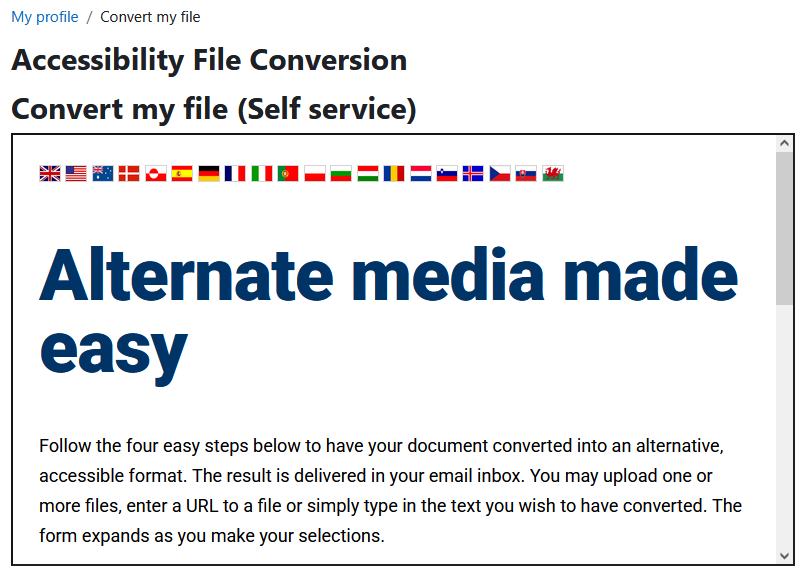
Accessibility does not stop at course content. The self-service page lets any member of staff or any learner convert their own documents into an accessible format, whether or not the file belongs to a Moodle course.

From their profile, a user uploads a document, chooses an output format and audio options, and is emailed when the converted file is ready. It is the same conversion engine behind in-course alternate formats, opened up to everyone through a simple "Convert my file" page.

With the self-service page, any user can:

  • Upload a personal document that is not tied to any course.
  • Choose from the full range of accessible output formats.
  • Set audio options such as voice and playback speed.
  • Submit a request and be notified by email when the file is ready.
  • Reach it from a "Convert my file" link in their profile or user menu.
The Convert my file self-service page for uploading a document to convert into an accessible format
Part 2 of 5

Audit and remediate

Find accessibility issues across every course, then fix them at scale from inside Moodle.

Automated Accessibility Auditing

Brickfield Enable scans the HTML content across your Moodle courses against more than 60 automated checks drawn from WCAG 2.1 and 2.2 Level AA. Teachers can request an audit of a single course on demand, while administrators can queue whole categories or the entire site.

Every activity and resource is assessed, so you know exactly where the barriers are — missing image descriptions, unclear links, empty headings, poor structure and more — before learners ever encounter them.

Auditing covers:

  • On-demand course analysis for teachers, plus category and site-wide queuing for administrators.
  • More than 60 automated checks aligned to WCAG 2.1 and 2.2 Level AA.
  • Assessment across every content type — images, links, headings, tables, text and media.
  • A clear pass or fail result for each activity, pinpointing the content that needs attention.
  • Re-analysis whenever you need it, so scores reflect the current state of each course.
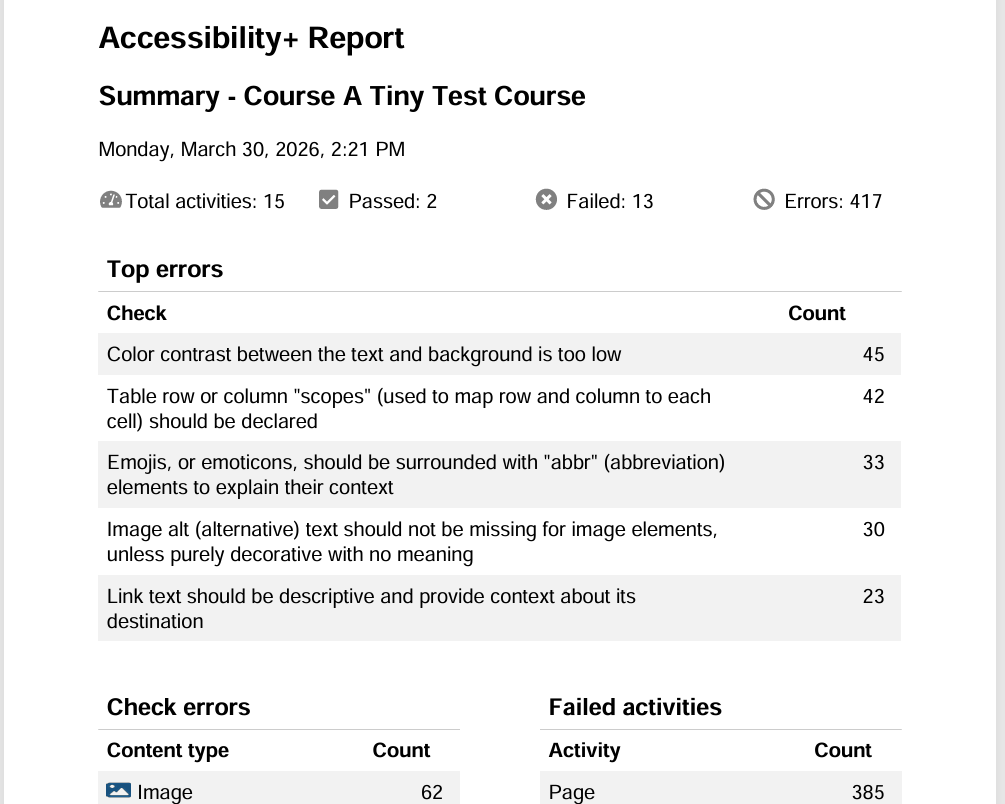
An accessibility summary report listing the most common errors found across a course

In-Course Accessibility Review

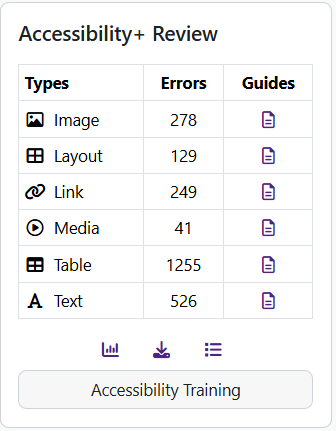
The Accessibility+ Review block puts accessibility where teachers actually work — inside the course. Added to the site home or any individual course, it gives staff a self-service summary of how their content is performing and a direct route to the tools that fix it.

From the block, a teacher can request analysis, read their results, open an outline report that highlights which activities passed or failed, open the relevant guides, and jump straight into the toolkit or training.

From the review block, teachers can:

  • Submit a course — or the site home — for accessibility analysis.
  • View an at-a-glance summary of accessibility results.
  • Download a course accessibility PDF transcript.
  • Open the outline report for a detailed activity-by-activity breakdown.
  • View and print just-in-time accessibility guides for each content type.
  • Sign in to Brickfield accessibility training in a single click.
The Accessibility+ review block showing error counts by content type with links to guides and training

Institution-Wide Reporting

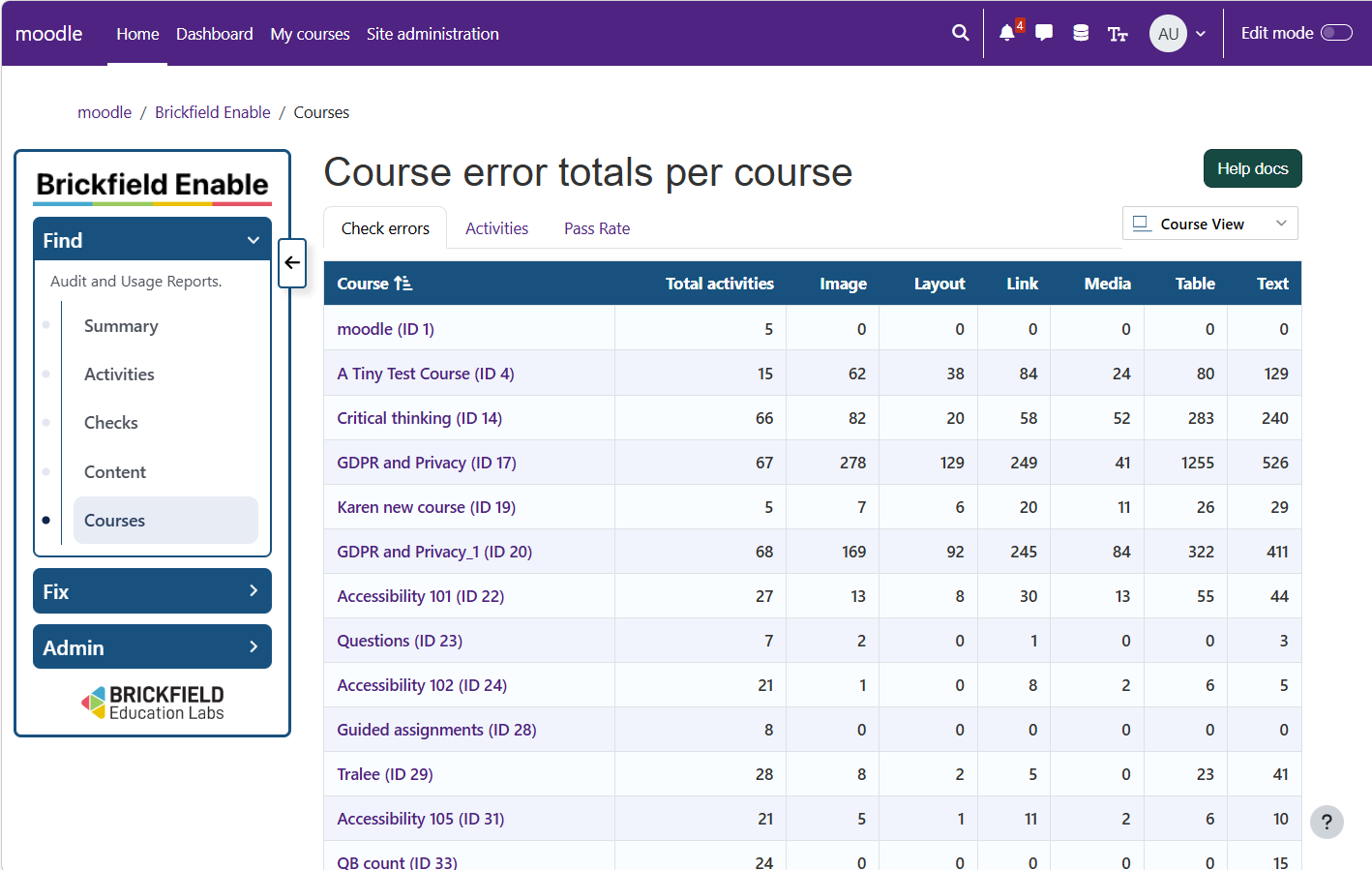
Brickfield Enable turns raw audit results into reporting that works at every level — from a single course to your entire Moodle site. Drill down by activity type, by individual accessibility check, by content type, by course, by category, or by tag and programme.

Downloadable summaries and PDF transcripts give you the evidence that procurement teams and regulators ask for, while usage and analysis dashboards help administrators see how accessibility is improving over time.

Reporting includes:

  • Activity, checks, content, course and outline reports for detailed, multi-level insight.
  • Site-level, category-level and tag or programme-level reporting.
  • Course accessibility summaries and downloadable PDF transcripts for audit evidence.
  • A usage report showing how your organisation is adopting the toolkit.
  • An analysis dashboard to help administrators submit and prioritise courses for analysis.
A site report showing accessibility error totals broken down by course

Bulk Remediation Wizards

Finding issues is only half the job. The fix wizards let teachers resolve common barriers in bulk, directly inside Moodle, with no exporting and no third-party tools.

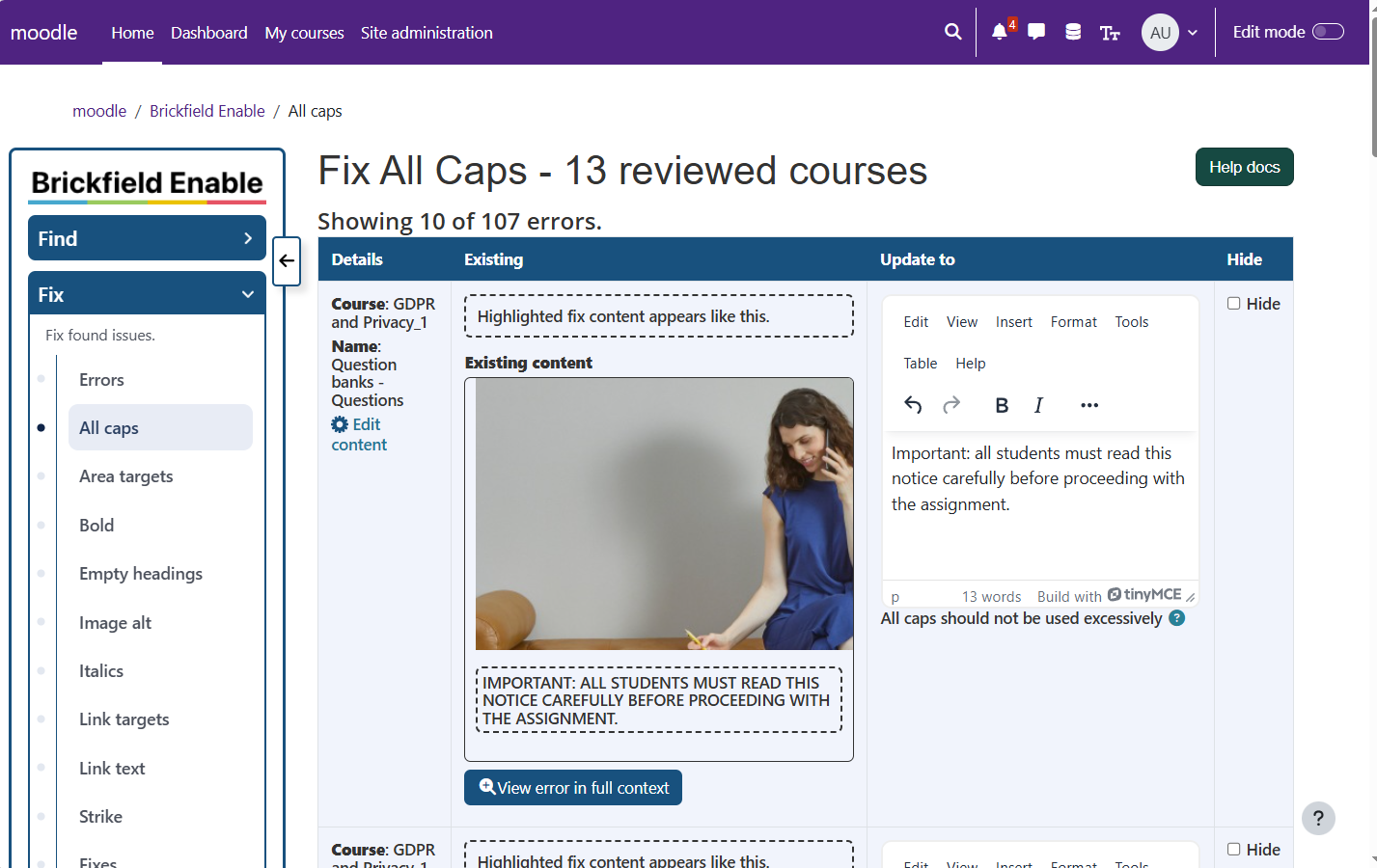
Each wizard works through one type of issue at a time — reviewing every instance, applying a fix across many activities at once, and keeping a full record so any change can be reverted. It is built around "progress, not perfection": steady, measurable improvement that staff can sustain.

The fix wizards can bulk-resolve:

  • Missing or inadequate image alternative text.
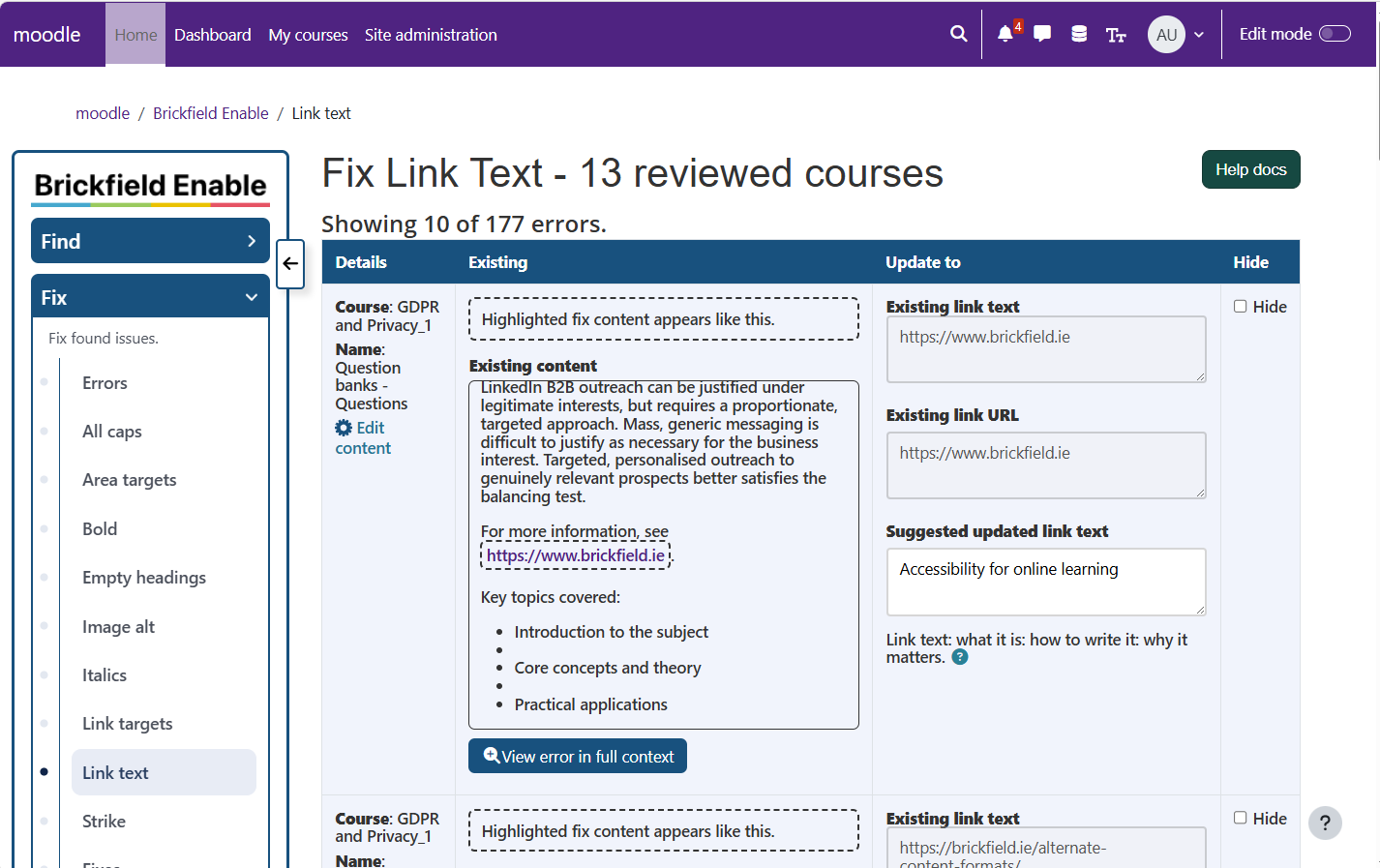
  • Non-descriptive link text, such as "click here" or a raw web address.
  • All-capitals text converted to sentence case.
  • Empty headings and some semantic HTML issues.
  • Italic, bold and strike-through tags used for visual styling rather than meaning.
  • "Open in new window" settings on content links and link areas.
  • Every bulk change is logged, so usage can be reviewed.
A bulk fix wizard correcting all-capitals text across multiple reviewed courses at once
Part 3 of 5

Author tools

Build accessibility into content at the point of creation, right inside the editor.

TinyMCE Accessibility Checker

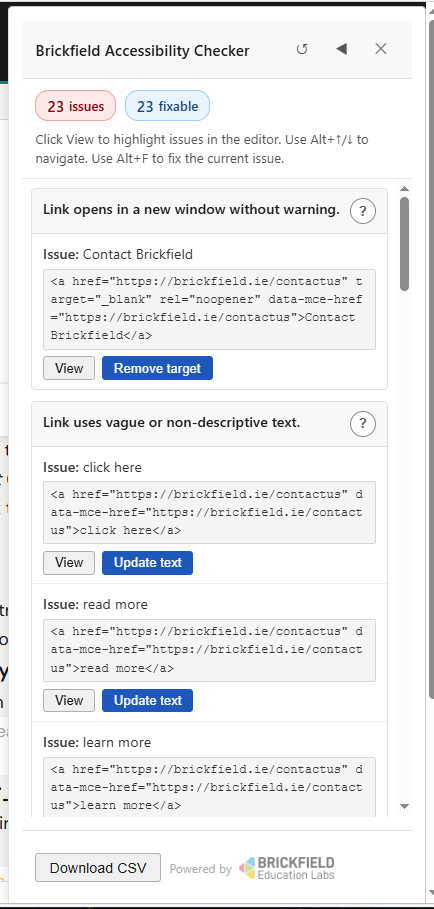
Most accessibility tools check a finished page. The Brickfield Accessibility Checker checks while you write. Built into the TinyMCE editor as a persistent side panel, it gives every Moodle author a real-time accessibility expert that detects issues as they type — and fixes most of them with a single click.

It runs 96 checks across 20 categories, and 92 of them carry an automated fix. Every check maps to a specific WCAG 2.1 success criterion, so authors see both what to fix, and why it matters. The checker is included in the Enterprise toolkit, and is also available as a standalone plugin.

The checker provides:

  • A persistent side panel that shows every issue while you edit, with full context always visible.
  • 96 checks across 20 categories — links, images, forms, tables, headings, media, lists, deprecated HTML, ARIA, colour contrast and keyboard accessibility.
  • Automated fixes for 92 of the 96 checks, across one-click, guided prompt and confirm modes.
  • Moodle-aware checks, such as learner-data field autocomplete, fieldset grouping, iframes and editor colour contrast.
  • A full accessibility report exported as CSV for audits and compliance tracking.
  • A privacy-first design that runs on your own server, with no external data calls during editing.
The Brickfield accessibility checker panel flagging issues in the editor with one-click fixes

Automatic Descriptive Link Text

Raw web addresses make poor link text — they are unreadable for screen-reader users and meaningless out of context. This filter fixes them automatically: when a bare address appears in content, Brickfield Enable replaces it with the actual title of the page it links to.

It runs quietly in the background across the editor formats you choose, improving existing content without anyone having to rewrite it.

The link filter:

  • Replaces a bare web address with the title of the linked page as the visible text.
  • Applies automatically, with no action needed from content authors.
  • Works across Moodle auto-format, HTML, plain text and Markdown.
  • Helps existing content meet descriptive-link-text requirements retrospectively.
A wizard reviewing and fixing non-descriptive link text across courses

Image Caption Editor

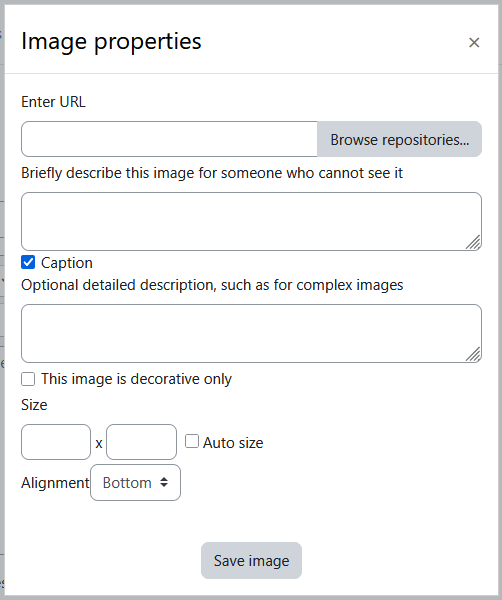
Standard alternative text is short by design — around 125 characters — which is fine for a simple photo but nowhere near enough for a detailed chart, diagram or infographic. The image caption editor adds a caption field for a longer, fuller description.

That means the meaning of a complex image — the trend in a graph, the steps in a process diagram — can be explained properly for learners who cannot see it.

The image caption editor lets authors:

  • Add a longer caption or description that goes beyond the standard alt-text limit.
  • Properly describe complex images such as charts, diagrams and infographics.
  • Mark purely decorative images so assistive technology can skip them.
  • Keep image descriptions with the content, inside Moodle.
The image editor dialog with a caption field for adding a long description to a complex image

TinyMCE Link Editor

The TinyMCE link editor builds accessibility into the writing process. As staff add links, it nudges them away from poor practice — flagging vague text and bare web addresses, and suggesting a clearer name pulled from the linked page itself.

It is the same accessibility thinking as the automatic filter, applied at the point of creation, so new content starts out accessible.

The TinyMCE link editor:

  • Retrieves the linked page's title and suggests it as descriptive link text.
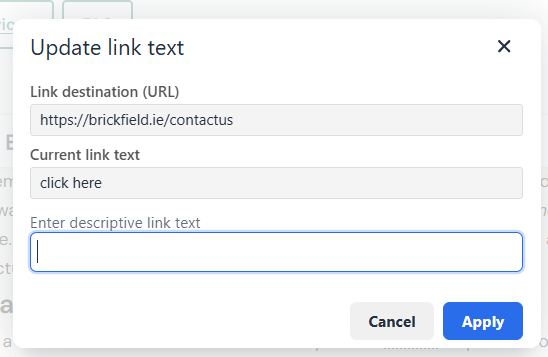
  • Warns authors when link text is not descriptive enough.
  • Discourages "click here" and bare web addresses as link text.
  • Offers a clear, optional setting for opening a link in a new window.
The link editor prompting the author to replace click here with descriptive link text
Part 4 of 5

Management and controls

Administrative tools that keep large Moodle sites organised, correctly licensed and easy to navigate.

Bulk File Licence Management

Copyright and licensing should not get in the way of accessibility, but they do need to be respected. The file licence report gives teachers and administrators a single page showing the licence on every file resource in a course, with the ability to update them one by one or all at once.

Because Brickfield alternative-format conversion can be tied to licensing, this lets institutions restrict conversion of copyrighted material to people with the right permissions, while keeping everything else open.

The licence report lets you:

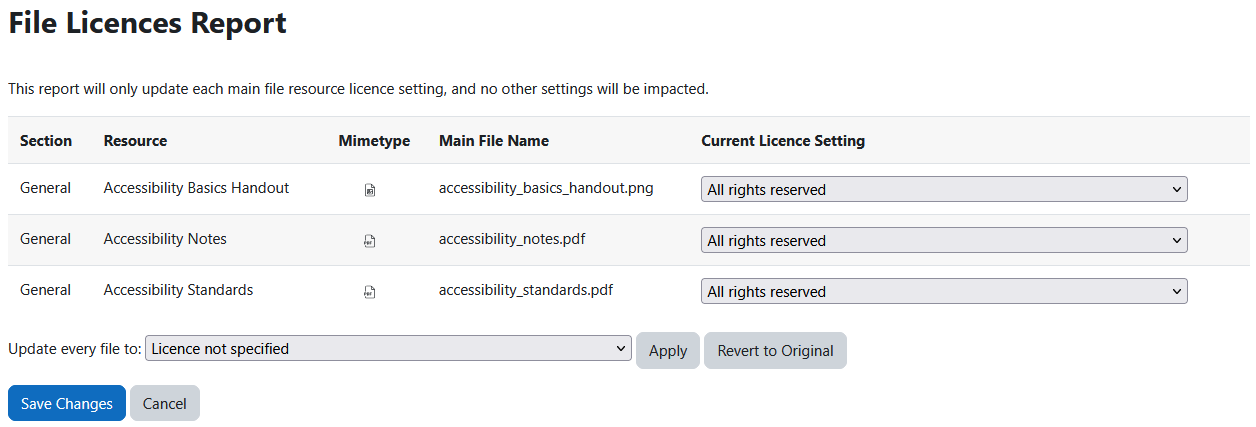
  • See every course file resource — section, resource, file type and current licence — on one page.
  • Set an individual licence on any file, choosing from standard and Creative Commons options.
  • Apply a single licence to every file in the course in one bulk action.
  • Revert to original settings or save your changes from the same screen.
  • Support copyright-aware conversion, restricting alternative formats where a licence requires it.
The file licence report listing each course file with editable licence settings

New Window Prompt

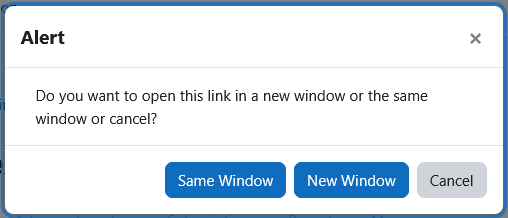
Links that open a new tab without warning can disorient users — particularly screen-reader and keyboard users who suddenly find themselves somewhere unexpected. This feature adds a brief, accessible prompt whenever a link is set to open in a new window.

The learner simply chooses whether to stay in the current window or open the new one, putting them in control of their own navigation.

The new window prompt:

  • Warns users before a link opens in a new browser tab or window.
  • Lets the user choose to continue in the same window or open a new one.
  • Is active by default, and can be switched off site-wide if preferred.
  • Can be disabled on the assignment view page, where it is not needed.
The prompt shown when a link opens a new window, letting the user choose same or new window

Course Group Uploader

Setting up groups using the Moodle group interface is slow and error-prone in large cohorts.

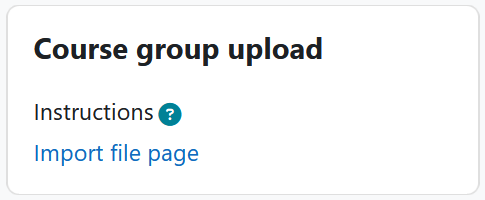
The course group uploader lets a teacher build groups and groupings for existing students from a single CSV file, in one step.

Add the block to a course, upload a three-column file, and Brickfield Enable creates the groups and groupings and assigns each enrolled student to the right one.

The course group uploader:

  • Creates groups and groupings for enrolled students from one CSV upload.
  • Matches students by identification number or email address.
  • Creates any group or grouping that does not yet exist, and adds users to those that do.
  • Skips and reports any student who is not found, then continues.
  • Lets you choose the CSV separator and character encoding on upload.
The course group uploader for importing a CSV to create groups for enrolled students
Part 5 of 5

Training

Unlimited access to the Brickfield Training Academy for every member of staff.

Single Sign-On to Unlimited Training

Every subscribing institution gets unlimited access to the Brickfield Training Academy for all of its staff — administrators and academics alike — at no extra cost per user.

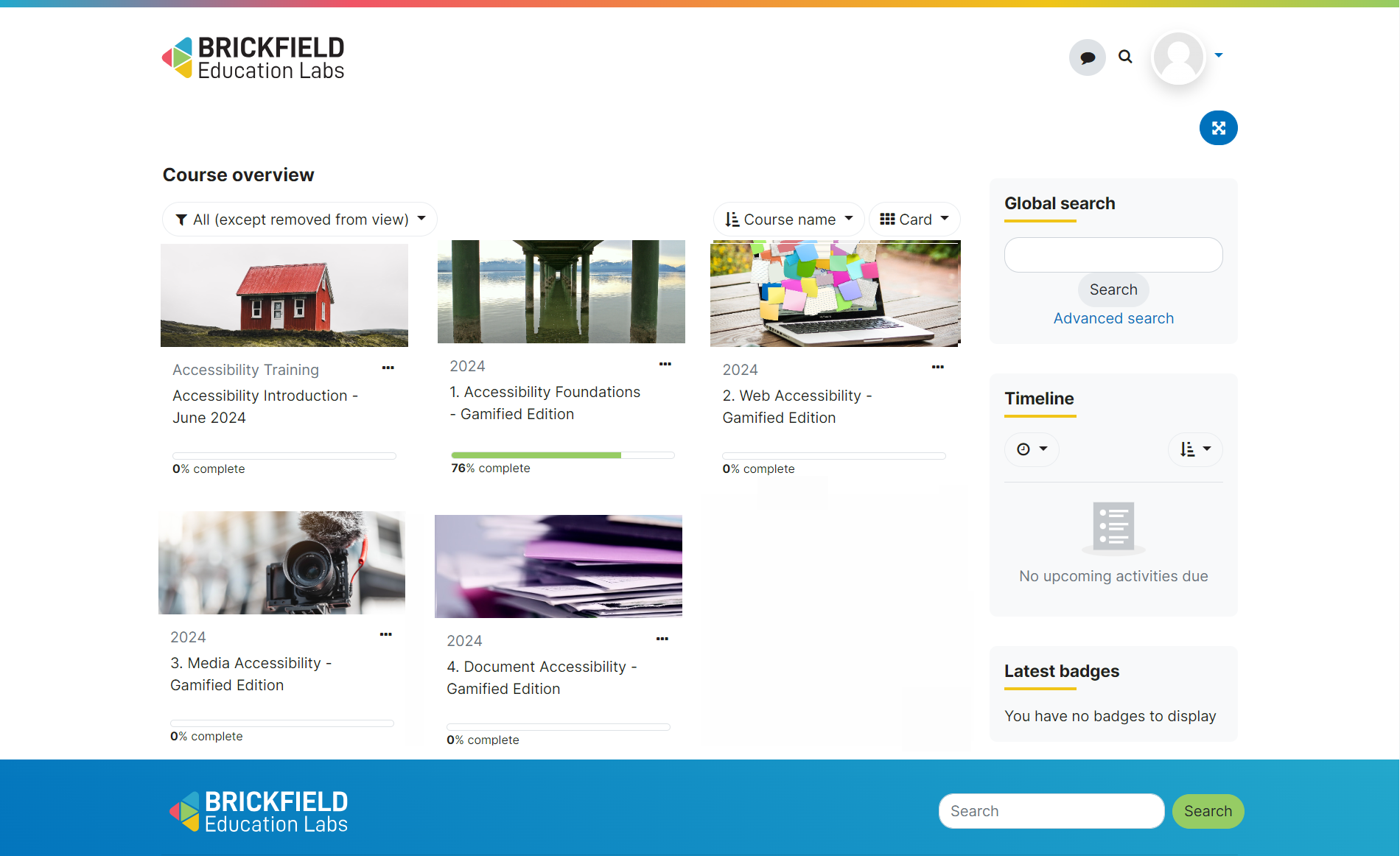
Staff move straight from the in-course review block into training with a single sign-on, with no separate account to manage. Courses are self-paced and backed by live workshops, so teams build real accessibility skills in web, multimedia and document design.

Training includes:

  • Single sign-on from Moodle straight into the Training Academy.
  • Unlimited access to self-paced courses for all staff.
  • Live workshops, including accessibility sessions delivered over Zoom.
  • Skills development across web, multimedia and document accessibility.
  • Admin and academic training included for the whole institution.
The Brickfield training catalogue showing accessibility courses with completion progress

See it in action in your Moodle

Book a free 30-minute demo with the Brickfield team. We will walk you through Brickfield Enable using a live Moodle environment and answer your questions.