Opening Links in a New Window: Accessibility Guidance
There are very few valid reasons to force a link to open in a new window or tab. For most users — and especially for people using screen readers, magnification software, or unfamiliar with browser tab behaviour — forcing a new window creates confusion and breaks navigation. This guidance explains why, and what to do instead.
1. What WCAG 2.2 Says
The Web Content Accessibility Guidelines (WCAG) 2.2 address new windows directly. The WCAG technique G200 notes that:
“In general, it is better not to open new windows and tabs since they can be disorienting for people, especially people who have difficulty perceiving visual content.”
WCAG does identify two narrow situations where opening a new window may be justified. First, where following a link would disrupt a multi-step workflow, such as a help page opened from within a form. Second, where a user is logged in to a secured area and following the link would terminate their session. In practice, neither applies to most web content or learning management systems: context-sensitive help is typically handled within the same interface (for example, in a modal), and modern session management does not log users out when they navigate away.
Where a new window is genuinely necessary, WCAG technique H83 requires that the user is warned in advance — not after the link has already been followed. The objective, as WCAG states, is “to avoid confusion that may be caused by the appearance of new windows that were not requested by the user.”
WCAG Success Criterion 3.2.5 (Change on Request, Level AAA) goes further, requiring that changes of context — including opening new windows — are only initiated by user request. While this is a AAA criterion, it reflects the direction of best practice.
Reference: WCAG 2.2 Technique G200; WCAG 2.2 Technique H83; WCAG 2.2 SC 3.2.5
2. The Impact on Screen Reader Users
Forcing a link to open in a new window causes specific, well-documented problems for screen reader users.
- When a new window opens, the back button in that window is reset. Screen reader users who rely on the back button to return to their previous page lose that navigation path entirely. The original page is still open, but in a different window — one the user may not know exists.
- Most screen readers do not announce that a link will open in a new window before the user follows it. Some newer versions do announce this, but only after the fact — once the new window has already opened. At that point, the user must find their way back without the expected back button behaviour.
- Screen reader users who navigate via keyboard shortcuts or browse by links may not have any visual or auditory indication that their context has changed. The experience is disorienting and can make it difficult to re-establish where they are within the overall structure of a site.
Reference: WebAIM: Links and Hypertext — notes that “unexpected new windows or tabs” is among the most common screen reader frustrations.
3. The Impact on Screen Magnification Users
Users who rely on screen magnification software — such as ZoomText, SuperNova, or the built-in zoom features of Windows and macOS — face a distinct set of problems when new windows open unexpectedly.
- Screen magnification users typically have a very small viewport: they see a small portion of the screen at high zoom, scrolling and panning to find content. When a new window opens, it may open at a different zoom level, in a different screen position, or with a different window size — each requiring the user to reorient.
- The new window indicator (a tab appearing at the top of the browser) may be outside the user’s current viewport. A user working at 400% zoom, focused on a link in the centre of the screen, may have no visible indication that anything has changed.
- JAWS and ZoomText used together (a common combination for users with low vision who need both screen reading and magnification) can produce especially confusing interactions when new windows open, as focus and zoom context may diverge.
Reference: Deque University: Opening Links in a New Window or Tab; WCAG Understanding 3.2.2 (On Input): unexpected changes of context are barriers for users with cognitive and visual disabilities.
4. The Impact on Users Unfamiliar with Tab Behaviour
Not all users understand that browsers can hold multiple windows or tabs at once, or know how to navigate between them. For these users — who may include older adults, people with lower digital literacy, or people accessing the web on an unfamiliar device — a forced new window is invisible and confusing.
- When a browser accumulates many open tabs, tab titles become progressively truncated until only a favicon remains visible. At 20 or more tabs, it is impossible to identify most tabs by reading them. A user who has been sent to a new tab by a link has no obvious way to identify which tab they came from, or to return to it. See Figure 1.
- A user who follows a link and finds that the back button is greyed out has no way to return to where they were. They may believe the site has broken, or give up entirely.
- On mobile devices, the experience is particularly poor. Opening a new tab in a mobile browser often provides no obvious visual cue. The user may be unaware there are now two tabs open, and have no intuitive way to return to the original page.
- Users accessing the web via a terminal or assistive technology configured for a single-window view cannot navigate between multiple windows. A forced new window means either losing the original page or being unable to access the new one.
Reference: Opening Links in New Browser Windows and Tabs (Nielsen Norman Group) — long-standing usability research showing that unexpected new windows disrupt navigation and erode trust. NN Group observe that “opening up new browser windows is like a vacuum cleaner salesperson who starts a visit by emptying an ashtray on the customer’s carpet.”
5. The Impact on Users with Cognitive Disabilities, ADHD, and Memory Difficulties
For users with cognitive disabilities, attention difficulties, or memory impairments, an unexpected context switch is more than an inconvenience. It can mean losing track of what they were doing, forgetting why they followed a link, or being unable to reconnect the content in the new window with the context they left behind.
- Users with ADHD may find that an unexpected new window breaks their focus and working memory entirely. The task they were completing in the original window may be forgotten. Re-establishing context requires cognitive effort that non-disabled users can take for granted.
- Users with memory difficulties, including those with acquired brain injuries or early-stage dementia, rely heavily on familiar navigation patterns. The back button is one of the most universal of these. When it stops working as expected, the mental model of “where I am on the web” breaks down.
- The WCAG guidance on change of context (SC 3.2.1 and 3.2.2) is partly motivated by cognitive accessibility: unexpected changes of context are a documented barrier for users with cognitive, attention, and memory disabilities.
- People who are anxious about technology, or who lack confidence as digital users, may interpret a non-functioning back button as evidence that they have broken something. This can lead to abandonment of the task.
Reference: WCAG 2.2 Understanding SC 3.2.1: On Focus; Cognitive Accessibility Guidance (W3C).
6. The Impact on Mobile and Touch Users
Mobile browsers handle new tabs differently from desktop browsers, and in most cases less visibly. The experience of a forced new tab on a mobile device is often more disorienting than on a desktop, particularly for users with disabilities or limited digital confidence.
- On iOS Safari and Chrome for Android, a new tab opens silently. There is no animation, sound, or prominent indicator that a new tab has appeared. The user is simply in a new context, with no history in the current tab and no obvious route back.
- The tab switcher on mobile browsers is typically a small icon in the corner of the screen, often showing only a number (e.g. “2”) to indicate the tab count. A user who does not recognise this icon, or who does not associate the number change with the link they just followed, has no way to find the original page.
- On small screens, the tab strip is not visible at all during normal browsing — tabs are accessed through a separate interface. A user who does not know this interface exists will not find their way back to the original tab.
- Users of switch access, eye-gaze technology, or other alternative input methods on mobile devices may find navigating a tab switcher substantially harder than pressing the back button. Removing back-button navigation removes the most accessible exit route.
- On low-end or older devices, multiple open tabs consume memory and can cause the browser to reload pages when switching back, adding latency and potentially losing scroll position or form data.
Reference: Mobile Accessibility: How WCAG 2.0 and Other W3C/WAI Guidelines Apply to Mobile.
7. Why “Open in New Window” Became Common — and Why That Reason Does Not Apply
The practice of forcing links to open in a new window has its origins in early web marketing, not in user research or accessibility thinking. Understanding this history helps explain why the practice persists despite causing harm.
In the mid-to-late 1990s and early 2000s, website owners became concerned that linking to external sites would cause visitors to leave and not return. The thinking was straightforward: if a user follows a link to another site in the same window, they may navigate further from there and never come back. Opening the external link in a new window kept the original site open in the background, ready for the user to return to it.
- This was a retention strategy, not a usability one. It prioritised the site owner’s interest in keeping visitors over the user’s expectation of how navigation works.
- The assumption was also flawed: users who want to return to a page will use the back button, bookmarks, or browser history. Forcing a new window does not create loyalty; it creates confusion.
- The practice spread through convention and imitation, appearing in web authoring guides, content management system defaults, and email newsletter templates. It became a default for many content editors who had never examined whether it was appropriate.
- In the context of learning management systems, institutional websites, and educational content, there is no legitimate marketing rationale for forcing new windows. The original justification does not apply, and the accessibility costs remain.
The persistence of this practice in accessible-by-intent organisations is largely a legacy issue: settings that were never questioned, templates that were never reviewed, and guidance that was never updated. Recognising the origin makes it easier to make the case for change.
8. Enterprise, Kiosk, and Locked-Down Environments
Organisations that deliver content through managed IT environments face additional risks from forced new windows. In these contexts, the impact can go beyond inconvenience and result in the link simply failing to work.
- Many enterprise environments configure browsers to block pop-ups and new windows by default as a security measure. A link using target=”_blank” in such an environment will either be silently blocked or trigger a browser warning. The user receives no indication of where the link was meant to take them.
- Kiosk browsers — used in libraries, reception areas, job centres, and educational institutions — are frequently configured to run in single-window mode. A link that attempts to open a new window will fail. The user cannot follow the link at all.
- Managed devices used in special educational needs (SEN) settings are often configured with restricted browsing environments to reduce distraction and support focus. These restrictions frequently prevent new windows from opening.
- Some assistive technology setups, including certain screen reader configurations and eye-gaze systems, are optimised for single-window navigation. Switching between windows requires additional steps that may be difficult or impossible within those configurations.
- Corporate proxy and content filtering systems may log or block new window requests depending on policy. In regulated sectors such as healthcare, finance, and education, this can create audit or compliance issues in addition to accessibility problems.
In all of these environments, the safest behaviour is the default behaviour: open links in the same window, allow the user to navigate with the back button, and do not assume that the browsing environment supports multiple windows or tabs.
9. Why an Icon Alone Is Not Sufficient Warning
A common approach is to add a small “new window” icon next to links that open in a new tab — typically an arrow pointing out of a box. This approach is widely used but widely misunderstood, and does not meet WCAG requirements on its own.
- Icons are not universally understood. Research by the Nielsen Norman Group and others consistently shows that icon recognition varies significantly across user groups. The “new window” icon in particular has no standardised form: different sites use different symbols, and many users do not associate any of them with tab behaviour.
- WCAG Success Criterion 1.1.1 requires that non-text content (including icons) has a text alternative. An icon used as a warning must therefore have accessible alt text or a visible text label. An icon with no accessible name provides no warning to screen reader users at all.
- Most accessibility guidelines, including those from the UK Government Digital Service (GDS) and the Web Accessibility Initiative (WAI), recommend that the warning be given in words, not just symbols. The GDS design system states: “If a link opens in a new tab, include the words ‘opens in new tab’ as part of the link text.”
- An icon with a tooltip is not equivalent to a text warning. Tooltips are not keyboard accessible in all browsers, are not reliably announced by all screen readers, and are not visible without hovering.
The safest approach — and the approach that satisfies WCAG H83 — is to include the warning as part of the visible link text: for example, Download the TY Handbook (PDF, opens in a new tab). Both icon and text together is better than icon alone. Text alone is better than icon alone.
10. What Automated Checkers Do and Do Not Catch
Automated accessibility checkers — including the Brickfield Starter checker, axe, WAVE, and the built-in Microsoft Office Accessibility Checker — flag links that open in a new window without any warning in the link text or accessible name.
However, automated checkers do not flag a link as problematic if the link text already contains the warning. This means:
- A link with the text “Read the report (opens in new tab)” will not be flagged by a checker, because the warning is present.
- A link with the text “Read the report” that opens in a new tab will be flagged.
- A link with the text “Read the report (new window)” or “Read the report (New Tab)” will not be flagged, even if the phrasing is inconsistent or the capitalisation is non-standard.
This means checkers can be satisfied by the presence of warning text, but cannot assess whether that text is well-written, consistently phrased, or genuinely understandable. Human review remains essential.
Note also that checkers cannot determine whether a link genuinely requires a new window. A link flagged for missing a new-window warning may simply be a link that should be changed to open in the same window. The correct resolution is often to remove “target=”_blank”” from the link entirely, not to add a warning to a link that should not open in a new window at all.
11. Recommended Approach
Default: Do not open links in a new window
Unless one of the narrow WCAG-recognised exceptions applies, do not force links to open in a new window or tab. Allow the user’s browser settings and preferences to determine this behaviour. The back button is the most-used navigation feature in browsers; preserve it.
When a new window is genuinely necessary
If a new window is required — for example, when launching a standalone application — always warn the user in advance as part of the visible link text. Use clear, consistent phrasing such as:
- “Join the session in Zoom (opens in a new window)”
- “Download the application form (PDF, 340 KB, opens in a new tab)”
Do not rely on an icon alone. If an icon is used alongside the text warning, it must have an appropriate accessible text alternative (alt text or aria-label). Icon plus text is acceptable. Text alone is acceptable. Icon alone is not.
Empower users with a preference setting
A better long-term approach is to give users control over this behaviour through their profile or preferences. Several major browsers (including Google Chrome and Mozilla Firefox) include a setting to open search results in a new window; DuckDuckGo and Google Search offer equivalent options. Providing a similar preference within a platform or learning management system removes the decision from the content author and places it where it belongs: with the user.
12. The Brickfield Approach: Intercepting the Choice
The Brickfield accessibility toolkit takes a different approach to the problem. Rather than relying on content authors to remove all instances of target=”_blank”, or on users to understand tab behaviour, the Premium toolkit intercepts the link at the point of activation and presents the user with a clear choice.
When a learner follows a link that would open in a new window, a dialogue appears before the navigation happens:
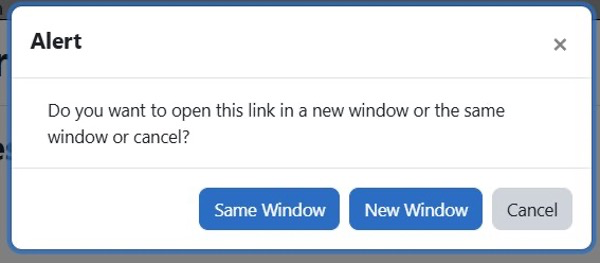
Figure 2: The Brickfield toolkit intercept dialogue, giving the learner an explicit choice before navigation occurs.
This approach addresses the core problem directly: it restores the user’s agency at the moment it would otherwise be taken away. Instead of the content author’s decision being imposed silently, the learner decides for themselves.
- The dialogue fires before the new window opens, so the back button problem never arises. If the learner chooses “Same Window”, navigation behaves as expected and the back button continues to work.
- The “Cancel” option allows the learner to stay where they are entirely — important for users who followed the link accidentally or who need to finish something in the current page first.
- Users who prefer new windows — including those who intentionally manage multiple tabs — retain that option. The toolkit does not impose a single behaviour; it offers a choice.
- The dialogue can be encountered repeatedly without being disorienting, because it always presents the same clear, consistent options. Over time, users learn what to expect.
- For screen reader users, the dialogue provides the advance warning that WCAG H83 requires — but in a more actionable form: not just a text warning, but a genuine decision point.
This is the user-preference approach implemented at the interaction level rather than requiring users to find and configure a profile setting in advance. It works for all users, including those who would never think to look for a preference.
The Brickfield Starter product flags new-window links for content author review. The Premium product adds this intercept dialogue, giving learners real-time control. Both approaches work together: the checker helps authors reduce unnecessary new-window links, while the intercept handles those that remain for legitimate reasons.
13. Quick Reference Summary
| Situation | Recommended action |
|---|---|
| Standard link to another page or site | Open in same window. Do not use target="_blank". |
| Link to help content or supplementary information | Open in same window, or use a modal/panel within the page. Do not force a new tab. |
| Link that would break a secured session | Open in new window with advance text warning in link text. Verify this applies before using it as justification. |
| Launching a standalone application (e.g. Zoom) | New window may be appropriate. Include advance text warning in link text. |
| Warning text in link — icon only | Not sufficient. Use visible text, with or without an icon. Ensure icon has an accessible name. |
| Warning text in link — text only | Acceptable. Phrasing should be consistent throughout the site (e.g. “opens in a new tab”). |
| Warning text in link — text and icon | Best practice. Icon must have an accessible name matching or complementing the text. |
References
- W3C Web Accessibility Initiative. WCAG 2.2 Technique G200: Opening new windows and tabs from a link only when necessary.
- W3C Web Accessibility Initiative. WCAG 2.2 Technique H83: Using the target attribute to open a new window on user request.
- W3C Web Accessibility Initiative. Understanding SC 3.2.5: Change on Request (Level AAA).
- W3C Web Accessibility Initiative. Understanding SC 3.2.1: On Focus.
- W3C Web Accessibility Initiative. Cognitive Accessibility Guidance — Making Content Usable for People with Cognitive and Learning Disabilities.
- W3C Web Accessibility Initiative. Mobile Accessibility: How WCAG 2.0 and Other W3C/WAI Guidelines Apply to Mobile.
- WebAIM. Links and Hypertext — Links Opening New Windows or Tabs.
- Nielsen Norman Group. Opening Links in New Browser Windows and Tabs.
- Nielsen Norman Group. Icon Usability.
- UK Government Digital Service. GOV.UK Design System: Links.
- Deque University / axe. Best practices for links that open in a new window.