Tips for Designing Moodle Courses That Work for Screen Reader Users (and Everyone Else)
We want to share some practical tips based on what we’ve seen work in the real world.
Before I get into specifics, one thing I always stress: every single tip below benefits all learners, not just screen reader users. When you design for accessibility, you’re designing for better structure, clearer navigation, and less cognitive load. That helps everyone. We know from research that around 80% of people with learning needs don’t declare them — so you can’t wait for someone to ask. You need to design proactively.
First — Screen Readers and Assistive Technology
On Windows, the two most common screen readers are JAWS (Job Access With Speech) and NVDA (NonVisual Desktop Access). JAWS is commercial and widely used in institutional settings. NVDA is free, open source, and increasingly popular — it’s the one I’d recommend for testing. Both work well with Firefox and Chrome, though many experienced JAWS users still prefer Firefox or Edge. On macOS and iOS, VoiceOver is built in and works best with Safari. On Android, TalkBack is the default and works with Chrome.
If you want to truly understand what your students experience, install NVDA (free from nvaccess.org) and try navigating your own course with the screen turned off. Five minutes of that will teach you more than any guideline document.
Choose Your Theme Carefully
This is the foundation and it’s often overlooked. The theme you use has a massive impact on accessibility, and most people don’t realise it until there’s a problem.
Moodle’s core Boost theme has been designed with accessibility in mind — proper ARIA landmarks, skip links, keyboard focus indicators, and a responsive layout that works with assistive technologies. If you’re on Boost or a well-maintained child theme of Boost, you’re starting from a solid base.
The risk comes with custom or third-party themes. We’ve seen themes that strip out skip navigation, break keyboard focus indicators, or have poor colour contrast. In our consultancy work with institutions, theme issues are one of the first things we check — because if the theme is broken, nothing else you do at the course level can fully compensate for it.
If you’re a teacher with no control over the theme, raise it with your admin team. If you’re an admin, audit your theme and stick with Boost or a Boost child theme you have audited. It’s the single most impactful change at the platform level.
Pick the Right Course Format
The choice of course format matters more than people think for screen reader navigation.
Topics and Weekly formats are the safest choices. They create a predictable, linear structure that screen readers can navigate section by section using headings. That predictability is key — screen reader users build a mental model of the page structure, and these formats give them a reliable, consistent model to work with.
Be cautious with formats like Tiles, Grid, or other visual/interactive formats. They can look great visually, and may be fine – but they often rely on JavaScript overlays, drag-and-drop interactions, or image-heavy navigation that may create real barriers. What looks like a clean grid of tiles to a sighted user can sound like a disorganised list of unlabelled links through a screen reader. Test first!
Using formats with Collapsed sections can work if properly configured, but expandable/collapsible sections can confuse screen readers if the states (expanded/collapsed) aren’t properly communicated to the screen reader software.
Please Note: We do not publish any test results for course formats, and when we last checked no theme outside of core has gone through the rigorous 3rd party ceertification process.
Keep Navigation Predictable and Consistent
I use a metaphor in my presentations: your Moodle courses shouldn’t be like a box of chocolates where you never know what you’re going to get. Learners need to know what they’re getting, consistency is key.
If Section 1 starts with an introduction, then a reading, then a discussion, then a quiz — Section 2 ideally should follow the same pattern. Every section, every time.
Screen reader users can’t “scan” the page visually to get their bearings. They’re relying on the structure being where they expect it to be. When it changes between sections, the mental model breaks down and they have to start from scratch every time.
This consistency is just as valuable for sighted learners, learners with cognitive disabilities, and frankly anyone who’s juggling multiple courses. It reduces the effort of figuring out “where things are” so learners can focus on the actual content.
Use Unique, Descriptive Headings
Screen reader users often navigate by pulling up a list of all headings on the page. In NVDA, you press H to jump between headings, or use the Elements List to see them all at once.
If your headings are generic — “Introduction”, “Resources”, “Activities” repeated in every section — that list is less useful. A student hearing “Introduction, “Resources”, “Activites”, has no idea which section each belongs to and has to remember which one they are in.
Make every heading unique and descriptive. Instead of “Introduction”, use “1.1 Introduction to Cell Biology” or “3.1 Week 3 Assessment“. The heading should tell the learner exactly where they are without needing any other context.
And when creating content inside Moodle’s text editor, use the heading styles (Heading 3, Heading 4, etc.) rather than just making text bold or increasing the font size.
Bold text that looks like a heading visually is invisible to screen reader heading navigation. It’s just another paragraph. Your page title is typically H1, so start your content headings at H3 and work down. Never skip levels.
Give Activities Unique, Descriptive Names
This is one of the most common issues we pick up when we run our accessibility training courses. Screen reader users can pull up a list of all links on a page — and if your course has “Assignment 1”, “Assignment 2”, “Quiz”, “Forum”, or worse, “Click here” and “Read more”, that list is meaningless.
Use descriptive, unique names for every activity. Sometimes a numbering convention works brilliantly: “2.1 Essay: Analyse the Causes of the French Revolution” tells the learner the structural context (Topic 2, Activity 1) and exactly what the activity is. Compare that with “Assignment 1” — which tells them nothing.
This has a bonus benefit: in Moodle’s gradebook, completion reports, and notification emails, those descriptive names appear everywhere. Better for screen reader users and better for all students.
It is also better for you when you’re reviewing submissions.
Treat the Course Page as a Launchpad
One of the most common mistakes we see is overloading the course page with content — long texts, embedded images, videos, and detailed instructions all crammed into section descriptions and labels.
For a sighted user, this creates an overwhelming wall of content. For a screen reader user, it’s far worse: they have to wade through all of it linearly just to find the activity links they need.
Think of your course page as a launchpad, not a destination. Keep it clean. A sentence or two of context per section, then the activity links. Put your detailed content inside the activities themselves — in Page resources, Book resources, or within the assignment descriptions.
Everyone benefits from this approach. Sighted learners get a cleaner, less overwhelming experience. Mobile users can navigate without endless scrolling. And screen reader users can get to the content they need in seconds rather than minutes.
Don't Hide Key Information in Blocks
Moodle’s sidebar blocks (in Boost) are useful for supplementary information — upcoming events, recent activity, progress indicators. But screen reader users typically navigate the main content region first. They may never go to the sidebar, or may reach it only after navigating through all the main content.
If you’re putting critical information in a block — “Reminder: assignment due Friday” or important navigation instructions — screen reader users are likely to miss it entirely. Important information belongs in the main course content area, ideally at the top of the relevant section.
And again, this helps everyone.
By default blocks are usually hidden, mobile users often don’t see blocks prominently, and even sighted desktop users develop “sidebar blindness” over time.
Create a Course Manual with the Book Module
A strategy I strongly recommend is creating a Moodle Book as a course manual. This Book contains everything a student needs to know about the course: outline, assessment schedule, key dates, submission guidelines, how to get help, and how the course is structured.
The Book module is excellent for screen reader users because it creates a structured, multi-page resource with a navigable table of contents. Unlike a single long Page resource, the Book breaks content into digestible chapters that can be navigated independently.
Place it prominently at the top of your course as the first thing any learner finds. It becomes a single reference point — no hunting through different sections for administrative information. This is one of those tips that every learner appreciates, regardless of how they access the course.
Use DOCX Over PDF for Documents
If you’re providing documents for students to read, Word (DOCX) format is significantly more accessible than PDF for screen reader users.
A properly structured DOCX file — with heading styles, alt text on images, and proper list formatting — is directly navigable by screen readers. Users can jump between headings, read tables cell by cell, and reflow text to their preferred size. The structure is inherent in the format.
PDFs are frequently the opposite. Many are created from print layouts, scanned documents, or exports that don’t preserve structure. Even “accessible” PDFs can have issues with reading order, table markup, or form fields. The PDF/UA standard exists, but in practice, the vast majority of PDFs in education don’t meet it.
Students can also more easily convert DOCX to other formats they need — text-to-speech, adjusted fonts and spacing, even braille. That flexibility matters for students with dyslexia, low vision, and other reading difficulties who may want to change fonts, increase line spacing, or use coloured backgrounds. All easier with DOCX than PDF.
If you or your institution have a lot of inaccessible PDFs, tools like can convert them to more accessible formats automatically — but starting with DOCX is always better than retrofitting PDFs. This is something available in our Enterprise toolkit.
Add Meaningful Alt Text to Images
Every informational image needs alt text that describes what the image communicates, not just what it shows. For a graph, describe the trend or key data point. For a diagram, describe what it illustrates. For a decorative image that adds no information, mark it as decorative.
An image with no alt text, or with a filename like “IMG_2847.jpg”, provides zero information and interrupts the reading flow. The Brickfield Toolkit can identify images missing alt text across your entire course — and the bulk fix wizards let you add or update alt text across multiple activities at once, rather than opening every page individually.
Provide Captions and Transcripts for Media
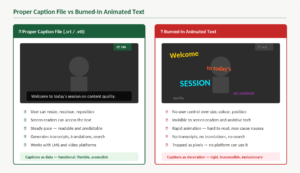
Any video content needs accurate captions — not just auto-generated ones, which are often full of errors, but reviewed and corrected captions. Audio content needs a transcript. This isn’t just for deaf or hard-of-hearing learners; a text transcript gives screen reader users something they can read at their own pace and navigate by heading.
If captions feel like a big ask, start with YouTube’s auto-captions and then edit them for accuracy. It’s not perfect, but it’s a massive step forward from nothing.
Use Tables for Data, Not Layout
Only use tables for actual tabular data, and always define header rows (and header columns where appropriate). Screen readers announce table dimensions and allow users to navigate cell by cell, reading row and column headers to provide context. A table without headers is just a grid of disconnected data.
Never use tables for visual layout — this is a common issue in content migrated from older systems or created with copy-paste from Word.
Use the Tools Available to You
Moodle 4.x includes a built-in accessibility checker in the text editor. Use it whenever you’re creating or editing content. Soon we will release a new updated Accessibility checker for the Tiny Editor.
For a more comprehensive picture, the Brickfield Accessibility Toolkit is available as a Moodle plugin — the Starter version has been included in Moodle core for five years.
The Toolkit scans your courses against WCAG standards and identifies issues with alt text, headings, links, colour contrast, and more. The full Enterrprise Toolkit includes bulk fixing wizards so you can remediate efficiently rather than editing every page one by one. And it integrates directly with our accessibility training courses, so your team can build the skills to prevent issues in the first place rather than just fixing them after the fact.
If you need a deeper assessment of your Moodle site’s accessibility — including theme evaluation, course design review, and staff training — that’s something we offer through our consultancy services. We’ve worked with institutions and organisations across Europe, the US, and beyond to help them build accessibility practices that last.
The Most Important Thing
You don’t need to be an accessibility expert to design an accessible course. If you follow the principles above — clear structure, descriptive names, consistent navigation, clean content, proper document formats — you’ll create a course that works for screen reader users and is a better experience for every single student.